> ## Documentation Index
> Fetch the complete documentation index at: https://help.broadstripes.com/llms.txt
> Use this file to discover all available pages before exploring further.
# Provisioning a virtual SMS number
> A project admin can create a virtual SMS number and assign it to a user so they can send text messages.
To send text messages in Broadstripes, a user needs a virtual SMS number to send from. A project admin can create a number and assign it to any user who has permission to send texts.
Broadstripes uses virtual numbers so that organizers don't have to give out their real cell numbers, and so another team member can take over an ongoing conversation if an organizer moves on from the campaign.
## Provision a number
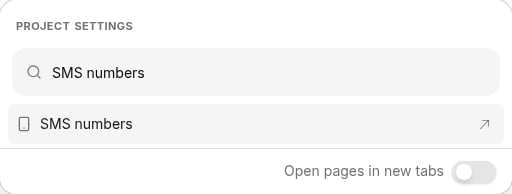
1. Click the **Project settings** icon in the upper right corner of any page (or press **Ctrl-K** / **⌘K**), then choose **SMS numbers**. You can start typing to filter the list.
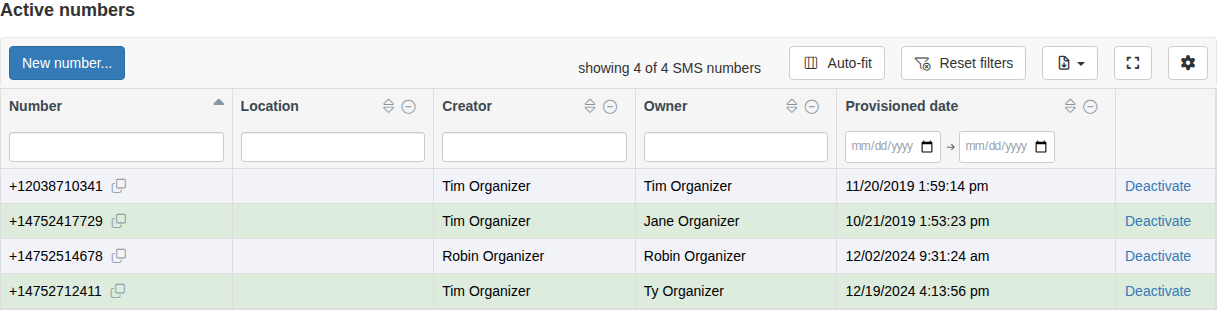
 2. On the **SMS numbers** page, click **New number...** in the table toolbar.
 3. In the **Add a new SMS number** dialog, fill in the fields:
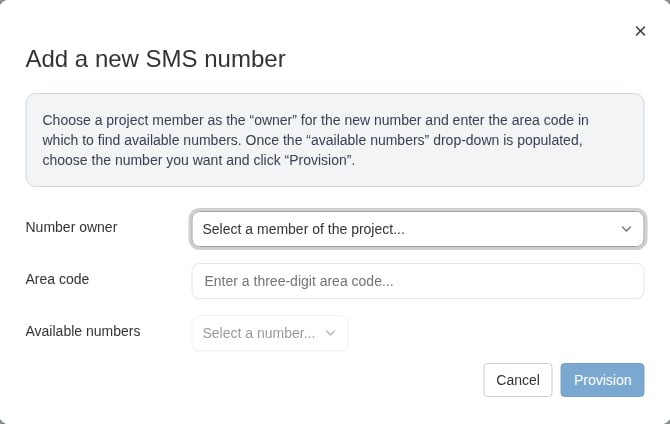 * **Number owner** — choose the project member who will own the number and send from it. (If you don't already have a number, you're selected by default.)
* **Area code** — enter a three-digit area code that makes sense for your project and your message recipients. Broadstripes looks up available numbers as soon as you enter a valid area code.
* **Available numbers** — once the dropdown populates, choose the number you want.
4. Click **Provision**.
5. A **Please wait** dialog confirms that your number is being provisioned. This can take up to 24 hours, though it usually finishes in less than an hour. Click **OK** to close it.
If a person in the project has your personal cell number in their contact info, send them a test text once provisioning finishes to confirm the new number is working.
Once provisioning completes, the number appears in the **Active numbers** table and its owner can use it to send texts.
## Release a number
The **SMS numbers** page lists every number in your project in an interactive data grid with sortable, filterable columns — the **Number**, its **Location**, the **Creator** and **Owner**, and the **Provisioned date**.
To give up a number you no longer need, click **Deactivate** in its row and confirm. The number is released back to the carrier and moves to a **Deactivated numbers** table at the bottom of the page.
Releasing a number is permanent. It returns the number to the carrier, so you can't count on getting that specific number back, and you can no longer send or receive texts from it. Texts you already sent from the number stay in your [Sent texts](/docs/communications/text-messaging#see-a-history-of-sent-texts-in-broadstripes) history.
* **Number owner** — choose the project member who will own the number and send from it. (If you don't already have a number, you're selected by default.)
* **Area code** — enter a three-digit area code that makes sense for your project and your message recipients. Broadstripes looks up available numbers as soon as you enter a valid area code.
* **Available numbers** — once the dropdown populates, choose the number you want.
4. Click **Provision**.
5. A **Please wait** dialog confirms that your number is being provisioned. This can take up to 24 hours, though it usually finishes in less than an hour. Click **OK** to close it.
If a person in the project has your personal cell number in their contact info, send them a test text once provisioning finishes to confirm the new number is working.
Once provisioning completes, the number appears in the **Active numbers** table and its owner can use it to send texts.
## Release a number
The **SMS numbers** page lists every number in your project in an interactive data grid with sortable, filterable columns — the **Number**, its **Location**, the **Creator** and **Owner**, and the **Provisioned date**.
To give up a number you no longer need, click **Deactivate** in its row and confirm. The number is released back to the carrier and moves to a **Deactivated numbers** table at the bottom of the page.
Releasing a number is permanent. It returns the number to the carrier, so you can't count on getting that specific number back, and you can no longer send or receive texts from it. Texts you already sent from the number stay in your [Sent texts](/docs/communications/text-messaging#see-a-history-of-sent-texts-in-broadstripes) history.