> ## Documentation Index
> Fetch the complete documentation index at: https://help.broadstripes.com/llms.txt
> Use this file to discover all available pages before exploring further.
# Text messaging
> Learn how to send, receive and track text messages in Broadstripes
## Overview
One of the most convenient features of Broadstripes messaging is that it allows you to send an SMS text to multiple workers at once, for instance, all the workers in a given shop or department, or everyone who has recently shown interest in coming to a rally you're planning.
You can also send a message to just one worker at a time. Either way, you can receive responses back on your cell phone, and can view a history of all your text communications in Broadstripes.
Get a look at how Broadstripes text messaging works in this overview video, or scroll down to watch a step-by-step video and learn how to get set up to send your first text blast.
## Video: Overview - How text messaging works in Broadstripes
## Video: How to set up and use text messaging in Broadstripes
***
## Before you can send a text message
A few things need to be in place before you start sending texts in Broadstripes:
1. Your organization must be [verified for SMS messaging](/docs/communications/getting-a-project-ready-for-texting).
2. You have to have **permission to send texts**, which an admin can give you.
3. You need a **virtual cell number**, which also must be provided by an admin. Broadstripes uses virtual numbers so that:
* organizers don’t have to give out their real cell numbers
* if an organizer moves on from a campaign, another team member can continue an ongoing text conversation in their place.
4. The people you want to text must be **opted in**. Broadstripes only texts cell numbers a worker has consented to be contacted on, so each recipient needs a valid cell number marked **Opted In**.
**Opting in your records is required — and it decides who actually gets your message.** Marking a cell number **Opted In** records the worker's consent to receive texts, which mobile carriers and regulations require. Broadstripes skips anyone whose cell number isn't opted in, so this is the step that determines who a text blast reaches. Learn how in [Text messaging permissions – opt in a cell phone](/docs/communications/text-messaging-opted-in-permissions).
### Recommended: Add your cell number to receive reply notifications
To receive a notification on your phone when a worker replies to a message you sent, add your personal cell number to your Broadstripes user account. This step is not required to send messages, but without it you will not be notified of replies.
This number won’t be visible to the workers you text -- they’ll receive texts from your virtual number. Here’s how to add it:
1. In the top-right navigation bar, click your **user disc** (the circle showing your initials or photo) to open the user menu, then select **User settings**.
2. In the **SMS notification settings** section, type your cell number into the **Phone number for SMS notifications** field, then click **Confirm and save**.
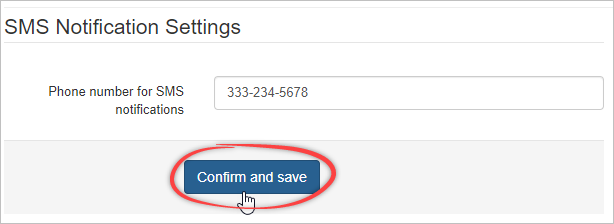 3. Broadstripes sends a confirmation text to your cell phone. Reply **YES** to confirm that you want to receive SMS notifications.
See [Set an SMS notification number](/docs/communications/set-a-sms-notification-number) for more detail.
## Sending a text message to multiple workers at once
From the search results page, you can easily send an SMS text to multiple workers using a bulk action.
Learn how step-by-step in the [Bulk Actions - Send SMS texts](/docs/communications/bulk-actions-send-sms-text-message) article.
## Sending a text to a single worker
You can also send a text to just one worker. You can use the method above (selecting only their name from the search results), or you can use a shortcut from the **Quick view** dialog:
1. From the **Search Results** page, click the **Quick view icon** () next to the worker's name.
3. Broadstripes sends a confirmation text to your cell phone. Reply **YES** to confirm that you want to receive SMS notifications.
See [Set an SMS notification number](/docs/communications/set-a-sms-notification-number) for more detail.
## Sending a text message to multiple workers at once
From the search results page, you can easily send an SMS text to multiple workers using a bulk action.
Learn how step-by-step in the [Bulk Actions - Send SMS texts](/docs/communications/bulk-actions-send-sms-text-message) article.
## Sending a text to a single worker
You can also send a text to just one worker. You can use the method above (selecting only their name from the search results), or you can use a shortcut from the **Quick view** dialog:
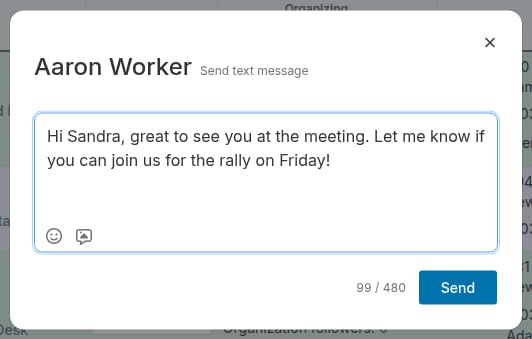
1. From the **Search Results** page, click the **Quick view icon** () next to the worker's name. 2. Click the **Quick actions** tab in the **Quick view** dialog, then click **Send SMS**.
 3. Compose your message (up to 480 characters). You can optionally attach an image (JPEG, PNG, or GIF, up to 600 KB) or a PDF (up to 5 MB) by clicking the **Attach a file** () button below the message. Then click **Send**.
 ## Receiving replies to your texts
Now let’s look at what happens if a worker **writes back to a text** you’ve sent using Broadstripes.
1. If someone **replies to a text** you've sent, you'll get a **text notification** on your cell phone with the **name of the project**, the **name of the** **worker** who responded and a **snippet** of their message.
## Receiving replies to your texts
Now let’s look at what happens if a worker **writes back to a text** you’ve sent using Broadstripes.
1. If someone **replies to a text** you've sent, you'll get a **text notification** on your cell phone with the **name of the project**, the **name of the** **worker** who responded and a **snippet** of their message. 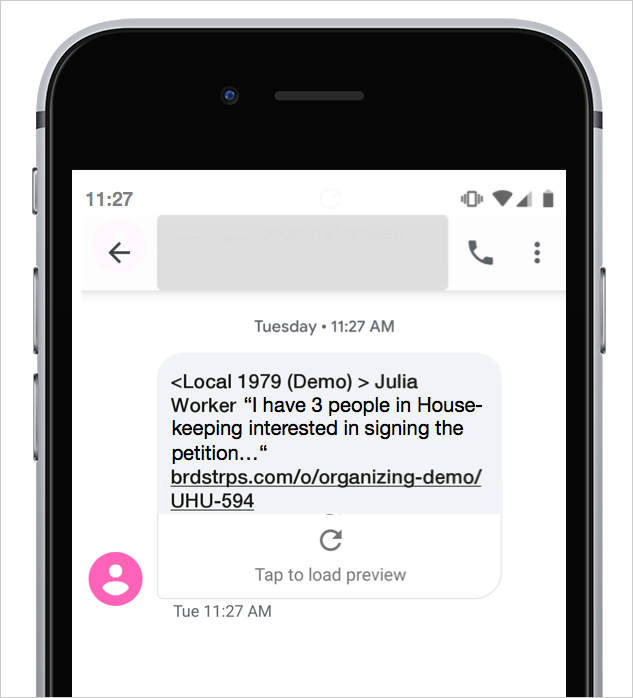 2. At the bottom of the **notification text**, there’ll be a **link** that takes you to the full text conversation in your **phone’s browser**.
3. **Tap the link** and **log in** to Broadstripes if you’re prompted.
4. The **browser display** that opens will look just like a regular text conversation and will allow you to continue your conversation using your Broadstripes virtual number. You’ll be able to **send** and **see messages** as they arrive in real time.
2. At the bottom of the **notification text**, there’ll be a **link** that takes you to the full text conversation in your **phone’s browser**.
3. **Tap the link** and **log in** to Broadstripes if you’re prompted.
4. The **browser display** that opens will look just like a regular text conversation and will allow you to continue your conversation using your Broadstripes virtual number. You’ll be able to **send** and **see messages** as they arrive in real time.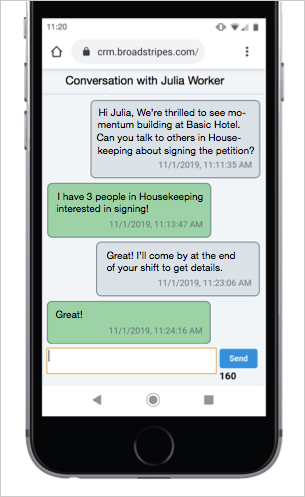 ## See a history of sent texts in Broadstripes
Seeing a **history** of the texts you've sent in bulk can be helpful for tracking and managing your communications. You'll also be able to see messages sent by others on your team. Here's how to view that history using Broadstripes:
1. Choose **Text messages** from the left-hand **sidebar**. This opens the **Text Messages** page, which has a **Sent Texts** tab and a **Templates** tab.
## See a history of sent texts in Broadstripes
Seeing a **history** of the texts you've sent in bulk can be helpful for tracking and managing your communications. You'll also be able to see messages sent by others on your team. Here's how to view that history using Broadstripes:
1. Choose **Text messages** from the left-hand **sidebar**. This opens the **Text Messages** page, which has a **Sent Texts** tab and a **Templates** tab.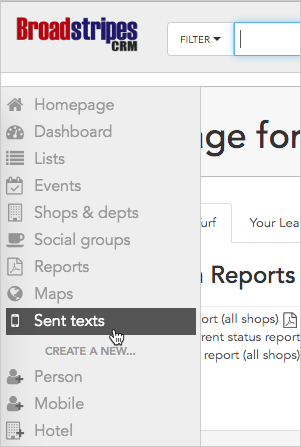 2. On the **Sent Texts** tab you'll see a **list** of every **bulk text** sent out for this project. Click the **info icon** to see more details about a specific text.
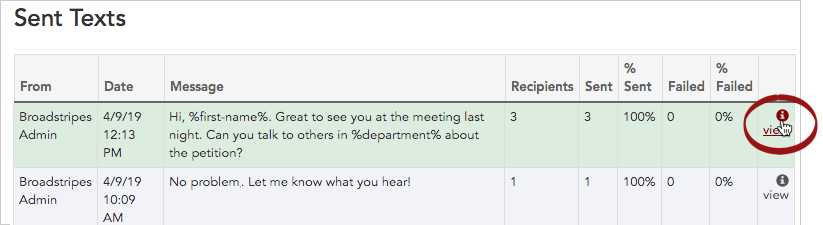 3. The detail page shows the message body, delivery statistics, and metadata such as the sender, recipient count, and sent date. If the message included a media attachment such as an image, an **Attached media** section appears at the bottom of the page. Click the image preview to open it in a new browser tab, or click **Download** to save the file to your device.