> ## Documentation Index
> Fetch the complete documentation index at: https://help.broadstripes.com/llms.txt
> Use this file to discover all available pages before exploring further.
# Share quick links
> Share quick links with user groups from your Quick Links page
You can easily share quick links to user groups on your Quick Links page.
The **Share** action is only available to project administrators.
This guide will walk you through the process of sharing quick links with user groups from your Quick Links page:
1. To share a quick link, you must first [create it](/docs/customize/create-a-quick-link). Once created, find the quick link on the Quick Links tab and click the **ellipsis** icon on its button to open the **Quick link actions** menu.
 2. Click **Share**.
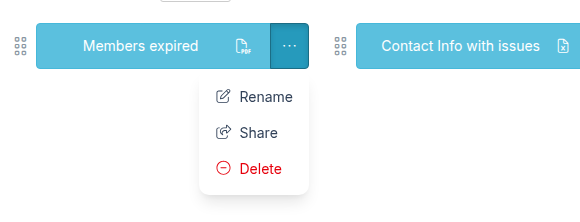 3. A dialogue box will appear where you can select the user group with which you want to share the quick link. Select the appropriate user group.
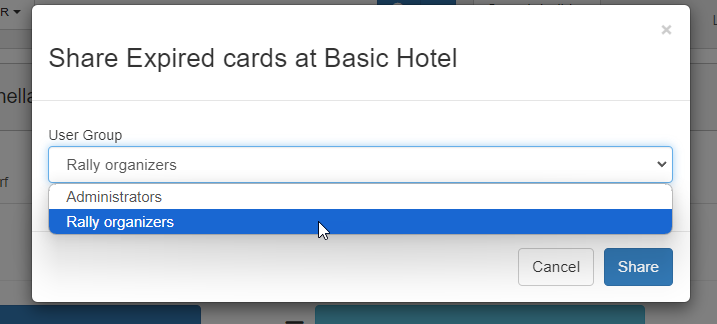 4. Click the **Share** button.
Once shared, the quick link will be available on the Quick Links page for all members of the selected user group.
4. Click the **Share** button.
Once shared, the quick link will be available on the Quick Links page for all members of the selected user group.