> ## Documentation Index
> Fetch the complete documentation index at: https://help.broadstripes.com/llms.txt
> Use this file to discover all available pages before exploring further.
# Search for people by their workplace
> Use the search builder to find everyone who works at a particular store, company, shop, or department.
## Intro
Sometimes you want to [search for a single person](/docs/getting-started/search-by-name) by name; at other times, you may want to see a group of people all at once.
A common case is when you want to see the name of everyone who works in a particular store, company, shop or department. For this example, we'll search for everyone who works at "**Big Shop**." Here's how:
## Search for people by workplace
Build a simple search to find all the workers at a certain workplace (whether it's a store, company, shop or department).
1. Start your search by clicking the **search builder** button in the search bar at the top of the page.
 2. A **Search builder** panel will appear below the search box, already showing one starter rule set to **Employer (in or below)** — which is exactly the field we want.
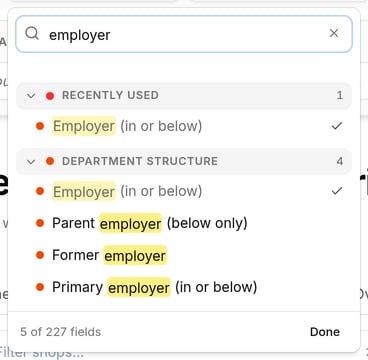
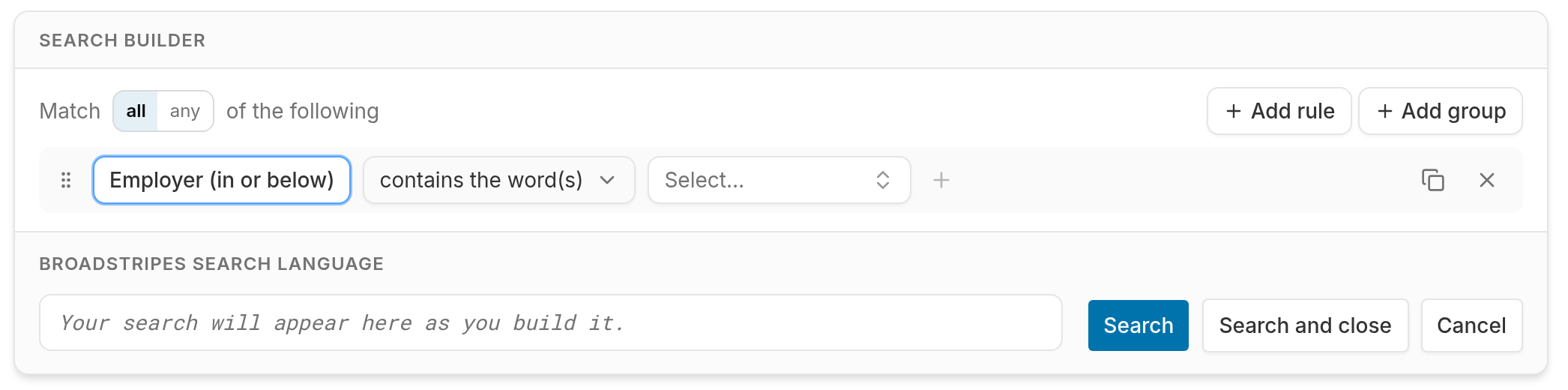 3. If you ever need a different field, click the rule's **field button** to open the field picker. You can browse the grouped list (**Employer (in or below)** lives under **Department Structure**), or bring the choice up even quicker by typing "**employer**" into the **Search fields** box at the top of the picker.
 4. Leave the **middle drop-down box** as it is, with "**contains the word(s)**" selected. (This drop-down box contains what's called the "**operator**". We'll cover other operator choices in more depth in another article in the knowledge base.)
5. Type "**Big Shop**" into the value box to the right of the operator.
6. Click the **Search** button.
7. All the workers who have an employment at **Big Shop** will appear in the **Search Results** panel.
4. Leave the **middle drop-down box** as it is, with "**contains the word(s)**" selected. (This drop-down box contains what's called the "**operator**". We'll cover other operator choices in more depth in another article in the knowledge base.)
5. Type "**Big Shop**" into the value box to the right of the operator.
6. Click the **Search** button.
7. All the workers who have an employment at **Big Shop** will appear in the **Search Results** panel.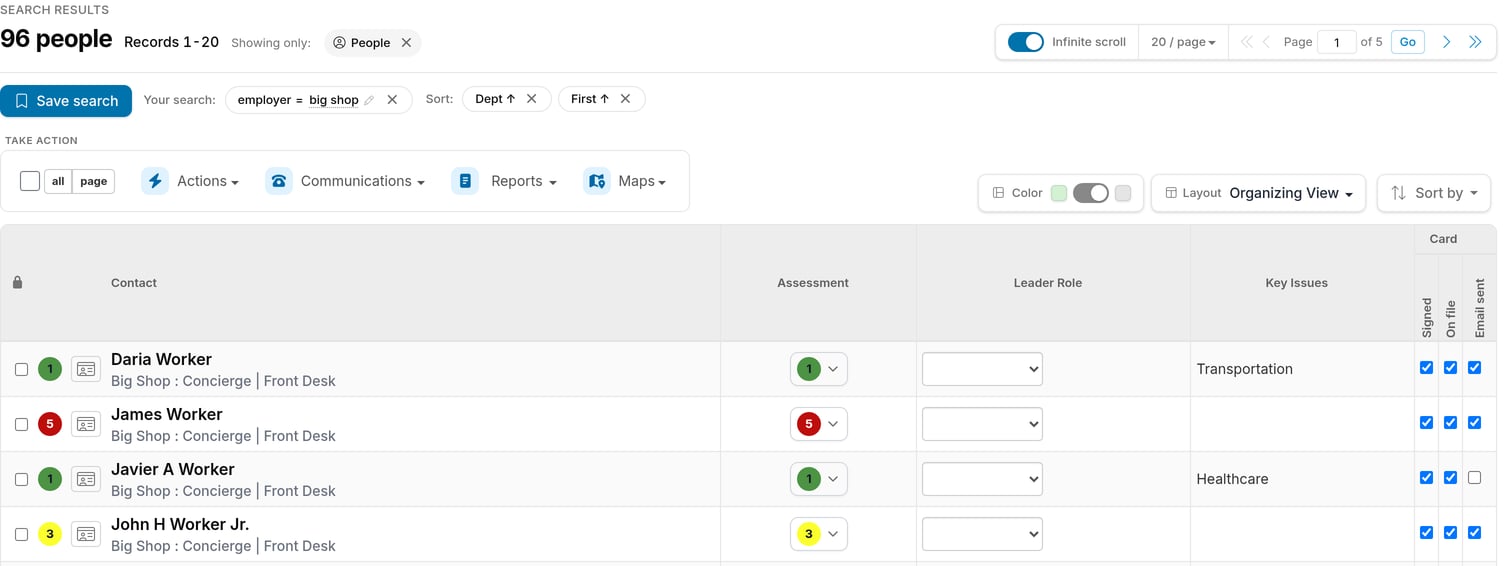 8. Congratulations on building a custom search! You can learn about creating more complex searches, including searches that combine multiple rules, in the [Build an advanced search](/docs/search/search-builder-build-an-advanced-search) section of the knowledge base.