> ## Documentation Index
> Fetch the complete documentation index at: https://help.broadstripes.com/llms.txt
> Use this file to discover all available pages before exploring further.
# Data imports
> Manage your project's data import history and saved import configurations from the Data Imports page.
**If you are looking for step-by-step help on how to import data** into your Broadstripes project, start with the [Data import overview](/docs/data-import-admin/data-import-overview). This article covers the **Data Imports** management page — import status, history, and saved configurations.
## Intro
Whether you have used data import only once (when you initially [imported a spreadsheet](/docs/data-import-admin/import-a-spreadsheet)), or you do regular re-imports from other databases to keep your Broadstripes project updated, you can manage all data import tasks and history from the **Data Imports** page.
You can access the page in one of two ways: click the **Project settings** icon in the upper right corner of any page (or press **Ctrl-K** / **⌘K**) and choose **Data imports**; or, from the **All project settings** page, click **Data imports** under the **Data import** heading.
The page has two tabs: **Data Imports** and **Saved Configurations**.
## Data Imports tab
The **Data Imports** tab lists every past, in-process, and scheduled import in the project, one row per import, with columns for status, type (manual or automated), timing, and clickable statistics — contacts created, contacts matched, rows with warnings, and rows skipped. Click the button at the top right of the table to choose which columns are visible.
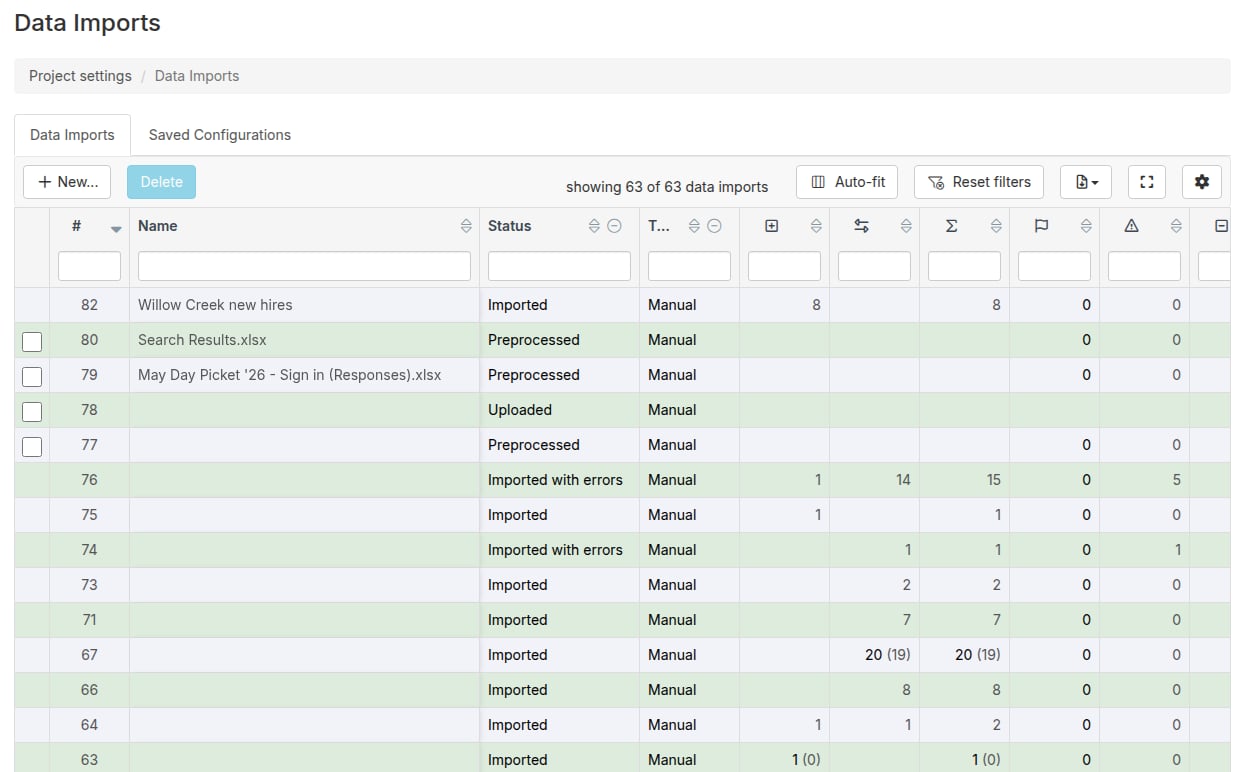 From this page you can also:
* **Start a new import** with the **+ New\...** button (see [Import a spreadsheet](/docs/data-import-admin/import-a-spreadsheet)).
* **Stop** a running import, and **restart** a stopped one from where it left off.
* **Delete** imports that haven't run yet. Select them with the checkboxes and click **Delete** — completed and in-process imports cannot be deleted.
For a column-by-column tour of the table, the meaning of each status, and how to drill into an import's results, see [Analyze import results](/docs/data-import-admin/analyze-import-results).
The imports on this page are also searchable: the search language's `import` keyword finds the contacts an import touched, e.g. `import = "Import 62"`, `import = "Import 36 Added"`, `import = "Import 49 Matched"`.
## Saved Configurations tab
Clicking the **Saved Configurations** tab opens the list of import configurations saved in this project.
### What is a saved configuration?
While preparing an import, admins can save its specifications — field mappings, match fields, and the policies for how data will be handled — as a "**saved configuration**". Saved configurations are especially useful when you're importing data from an external system and plan to re-import it in the future: the re-imported data will be handled exactly the same way each time. You create one during the import process, under **Configuration Options > Create a new configuration** (see [Import a spreadsheet](/docs/data-import-admin/import-a-spreadsheet#configuration-options-reusing-your-work)).
The tab lists each configuration's **Name** and, if the configuration is tied to one, its **External System**.
Click a configuration's name to view its details: the spreadsheet columns it expects, which Broadstripes field each one maps to, which columns are matched on (a checkmark in the **Match?** column), and which columns build the shop structure (a checkmark in the **Department Indicator** column).
Saved configurations are read-only — you cannot edit one, but you can create a new configuration during any import. Broadstripes applies a saved configuration automatically when you upload a spreadsheet whose column headers exactly match it.
From this page you can also:
* **Start a new import** with the **+ New\...** button (see [Import a spreadsheet](/docs/data-import-admin/import-a-spreadsheet)).
* **Stop** a running import, and **restart** a stopped one from where it left off.
* **Delete** imports that haven't run yet. Select them with the checkboxes and click **Delete** — completed and in-process imports cannot be deleted.
For a column-by-column tour of the table, the meaning of each status, and how to drill into an import's results, see [Analyze import results](/docs/data-import-admin/analyze-import-results).
The imports on this page are also searchable: the search language's `import` keyword finds the contacts an import touched, e.g. `import = "Import 62"`, `import = "Import 36 Added"`, `import = "Import 49 Matched"`.
## Saved Configurations tab
Clicking the **Saved Configurations** tab opens the list of import configurations saved in this project.
### What is a saved configuration?
While preparing an import, admins can save its specifications — field mappings, match fields, and the policies for how data will be handled — as a "**saved configuration**". Saved configurations are especially useful when you're importing data from an external system and plan to re-import it in the future: the re-imported data will be handled exactly the same way each time. You create one during the import process, under **Configuration Options > Create a new configuration** (see [Import a spreadsheet](/docs/data-import-admin/import-a-spreadsheet#configuration-options-reusing-your-work)).
The tab lists each configuration's **Name** and, if the configuration is tied to one, its **External System**.
Click a configuration's name to view its details: the spreadsheet columns it expects, which Broadstripes field each one maps to, which columns are matched on (a checkmark in the **Match?** column), and which columns build the shop structure (a checkmark in the **Department Indicator** column).
Saved configurations are read-only — you cannot edit one, but you can create a new configuration during any import. Broadstripes applies a saved configuration automatically when you upload a spreadsheet whose column headers exactly match it.