> ## Documentation Index
> Fetch the complete documentation index at: https://help.broadstripes.com/llms.txt
> Use this file to discover all available pages before exploring further.
# Job titles/Classifications
> View, rename, merge, and delete your project's job titles (or classifications) from the Classifications dialog.
### Manage the job titles (also called classifications) you have created for your project.
What's the difference between "Job titles" and "Classifications"?
To give a short answer -- nothing! "Job title" and "Classification" refer to the exact same piece of employment information in Broadstripes; it's just a matter of how it is labeled. In fact, you may use "Job title" in one Broadstripes project and "Classification" in another.
You can change this label at any time in your [General Settings](./general-settings).
For this article, we'll be referring to "Job titles," but if your project uses Classifications instead, just substitute "Classification" wherever "Job title" is mentioned.
## Open the Job titles dialog
1. Click the **Project settings** icon in the upper right corner of any page (or press **Ctrl-K** / **⌘K**).
2. In the **Project settings** menu, click **Job titles** (or **Classifications**) under the **Customization** group. You can start typing to filter the list.
3. The **Job titles** dialog opens, showing a table of all job titles in your project -- including those used by current employments, terminated employments, and any titles that were once assigned but are no longer linked to any employment.
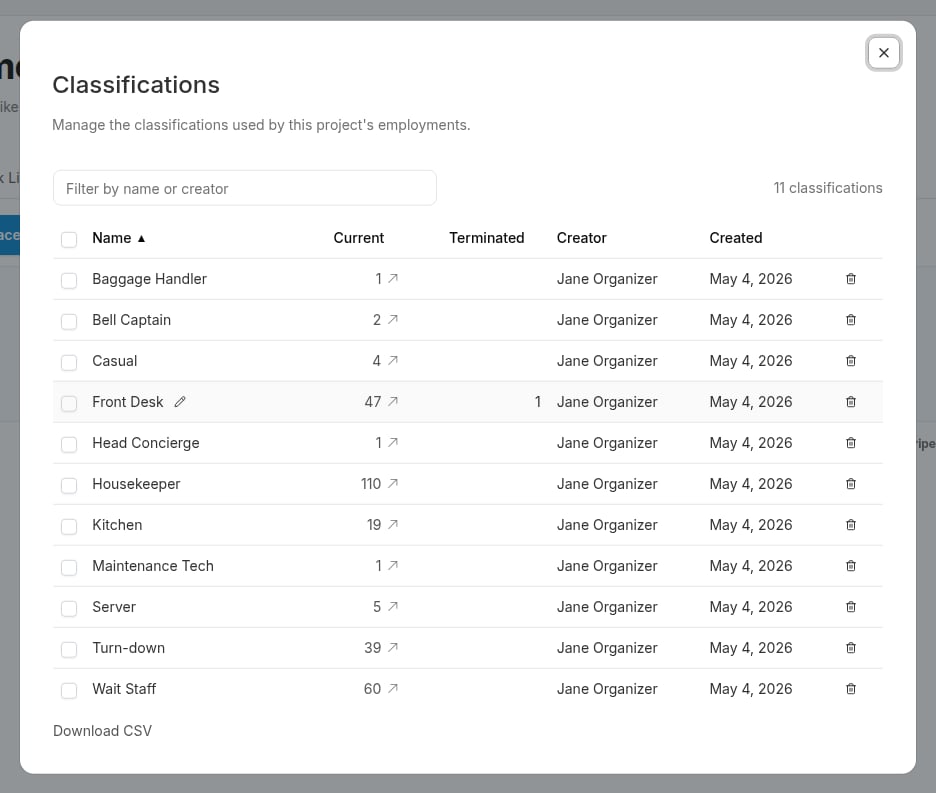 The table includes the following columns:
| Column | Description |
| -------------- | -------------------------------------------------------------------------------------------------- |
| **Name** | The job title name. Click the name (or the pencil icon) to rename it inline. |
| **Current** | Number of active employments using this title. Click the count to open a search for those workers. |
| **Terminated** | Number of terminated employments that used this title. |
| **Creator** | The user who created the title, linked to their person page when accessible. |
| **Created** | The date the title was first created. |
You can click any column header to sort by that column. Click again to reverse the sort order.
## Filter the list
Type in the **Search** field at the top of the dialog to filter the table by job title name or creator name.
## Rename a job title
1. In the **Job titles** dialog, click the **pencil** icon next to the name you want to rename (or double-click the name itself). The name becomes an editable text field.
2. Type the new name and press **Enter** (or click elsewhere) to save. Press **Escape** to cancel without saving.
If the new name matches an existing job title, Broadstripes will offer to merge the two titles together. See [Merge job titles](#merge-job-titles) below for what happens next.
## Merge job titles
Merging combines two or more job titles into one, and automatically re-assigns any affected current and terminated employments to the surviving title.
### Merge by renaming into an existing title
When you rename a job title to a name that already exists, Broadstripes detects the conflict and asks whether you want to merge. Confirm to proceed; the renamed title is removed and its employments are moved to the existing one.
### Merge selected titles
1. Check the box next to each job title you want to merge (select at least two).
2. Click **Merge (n)** in the toolbar that appears above the table.
3. In the **Merge** dialog, choose which title to keep as the survivor -- Broadstripes pre-selects the most-used one -- or type a new name for the merged title.
4. Click **Merge** to confirm. All selected titles are combined into the survivor, and all employments are updated automatically.
## Delete job titles
Deleting a job title does not remove it from existing employment records -- it removes the title entry from the project. All employments currently using a deleted title will lose that assignment.
### Delete a single job title
In the job titles table, click the **trash** icon on the row you want to remove. Confirm the deletion when prompted.
### Delete multiple job titles
1. Check the boxes next to the job titles you want to delete.
2. Click **Delete (n)** in the toolbar above the table.
3. Confirm the bulk deletion when prompted.
## Download as CSV
To export the full list of job titles, click **Download CSV** at the bottom of the dialog. The file includes every title and its current and terminated employment counts.
The table includes the following columns:
| Column | Description |
| -------------- | -------------------------------------------------------------------------------------------------- |
| **Name** | The job title name. Click the name (or the pencil icon) to rename it inline. |
| **Current** | Number of active employments using this title. Click the count to open a search for those workers. |
| **Terminated** | Number of terminated employments that used this title. |
| **Creator** | The user who created the title, linked to their person page when accessible. |
| **Created** | The date the title was first created. |
You can click any column header to sort by that column. Click again to reverse the sort order.
## Filter the list
Type in the **Search** field at the top of the dialog to filter the table by job title name or creator name.
## Rename a job title
1. In the **Job titles** dialog, click the **pencil** icon next to the name you want to rename (or double-click the name itself). The name becomes an editable text field.
2. Type the new name and press **Enter** (or click elsewhere) to save. Press **Escape** to cancel without saving.
If the new name matches an existing job title, Broadstripes will offer to merge the two titles together. See [Merge job titles](#merge-job-titles) below for what happens next.
## Merge job titles
Merging combines two or more job titles into one, and automatically re-assigns any affected current and terminated employments to the surviving title.
### Merge by renaming into an existing title
When you rename a job title to a name that already exists, Broadstripes detects the conflict and asks whether you want to merge. Confirm to proceed; the renamed title is removed and its employments are moved to the existing one.
### Merge selected titles
1. Check the box next to each job title you want to merge (select at least two).
2. Click **Merge (n)** in the toolbar that appears above the table.
3. In the **Merge** dialog, choose which title to keep as the survivor -- Broadstripes pre-selects the most-used one -- or type a new name for the merged title.
4. Click **Merge** to confirm. All selected titles are combined into the survivor, and all employments are updated automatically.
## Delete job titles
Deleting a job title does not remove it from existing employment records -- it removes the title entry from the project. All employments currently using a deleted title will lose that assignment.
### Delete a single job title
In the job titles table, click the **trash** icon on the row you want to remove. Confirm the deletion when prompted.
### Delete multiple job titles
1. Check the boxes next to the job titles you want to delete.
2. Click **Delete (n)** in the toolbar above the table.
3. Confirm the bulk deletion when prompted.
## Download as CSV
To export the full list of job titles, click **Download CSV** at the bottom of the dialog. The file includes every title and its current and terminated employment counts.