

Understanding pool types
Random pools (Default)
How they work:- System automatically selects the next person for each caller
- Each person is called once per caller
- People are locked while being called to prevent duplicates
- Callers don’t see who’s next until the call starts
- Large-scale outreach where every contact is equally important
- GOTV campaigns
- General surveys
- Situations where you want to prevent caller bias in selecting contacts
List call pools
How they work:- Callers see a full list of everyone in the pool
- Callers choose who to call from the list
- Still includes call locking to prevent duplicates (Caller can override in a List call pool)
- List can be sorted and filtered
- Targeted calling where caller judgment matters
- Follow-up calls
- VIP or leadership outreach
- Situations where callers need to see context (e.g., previous call outcomes)
Session metrics dashboard
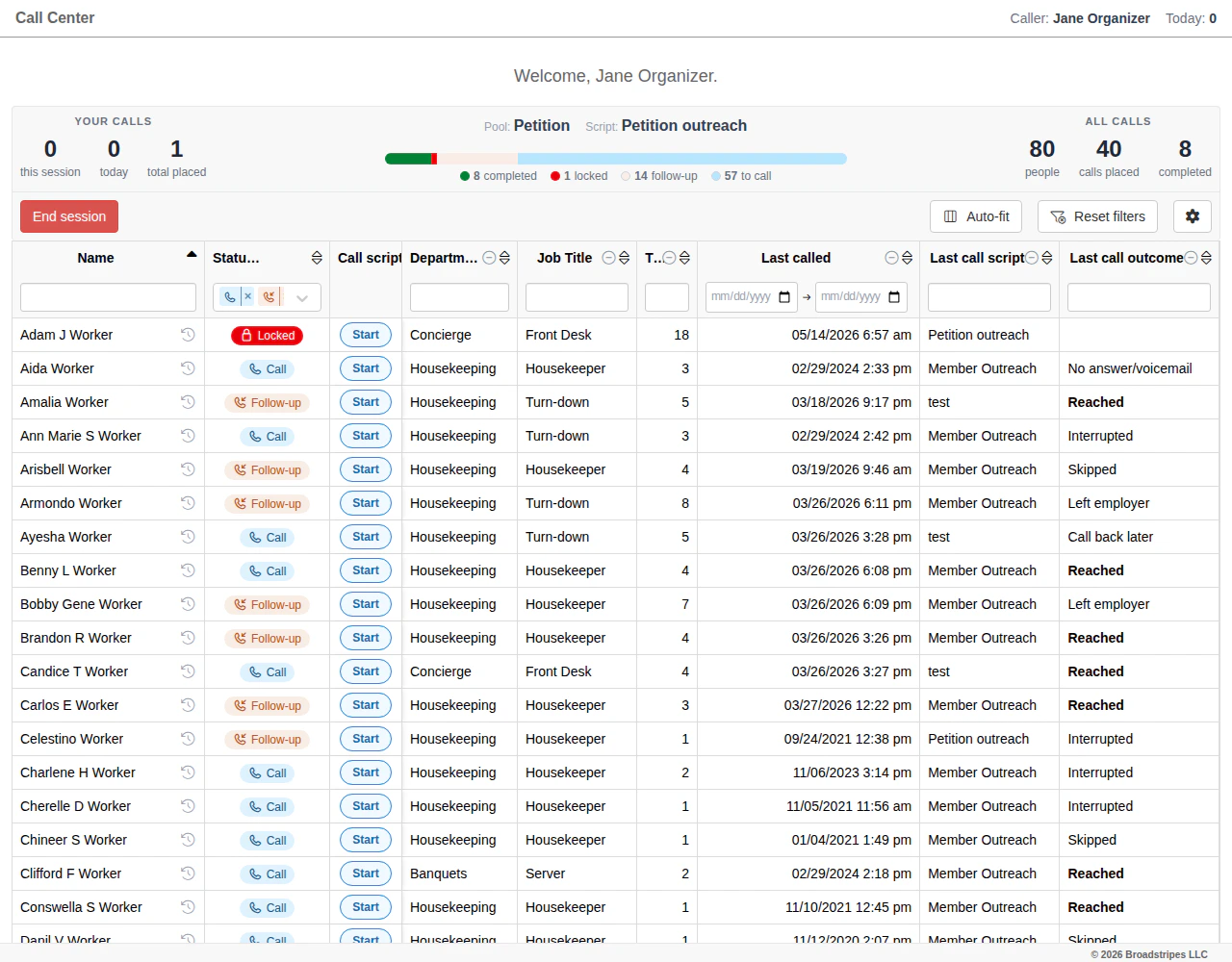
When a caller opens a List call pool, a metrics dashboard appears above the target list. It gives callers a running view of their own activity and the pool’s overall progress, so they can see at a glance how the campaign is going while they work.
- Your calls (left) shows the current caller’s activity:
- this session — calls placed since starting the current session
- today — calls placed by this caller in this pool today (across all sessions)
- total placed — calls placed by this caller in this pool, all time
- Pool / Script (center) names the call pool and call script, and shows a progress bar that breaks the pool down by call status (the same statuses described in the Call pool status column below — Completed, Call back / follow-up, and Call / to call).
- All calls (right) shows the pool’s totals across every caller:
- people — total people in the pool
- calls placed — calls placed in this pool by all callers combined
- completed — calls that reached a completion outcome
Call pool status column
In a List call pool, each person in the list displays a Status badge that shows their current call progress. The status is determined by the person’s call history with the pool’s script.By default, the list shows only people with Call and Follow-up statuses. Use the status filter to show Complete or Locked people as well.
Call history panel
The list view also includes a call history panel that shows recent call activity for each contact in the pool. Use it to see at a glance who has been called, when, and what happened — without having to open each contact’s full record. For each person in the list, the panel surfaces:- Recent call attempts for the pool’s script, with the date and time of each attempt
- The outcome of each call (for example, the response chosen by the caller, whether the call was completed, or whether it needs follow-up)
- The caller who made the attempt
- Avoid calling someone twice in a row by checking whether they were just contacted by another caller.
- Prioritize call-backs by spotting people whose last attempt did not reach a completion outcome.
- Coordinate across volunteers so that conversations build on what has already been said rather than starting over.
Authenticated pools
How they work:- Additional verification step before calling begins
- Used for sensitive or official processes
- Can include password protection
- Often tied to specific custom fields (like “Ratification Vote”)
- Contract ratification votes
- Officer elections
- Sensitive surveys
- Any situation requiring verified identity
Reach out to Broadstripes support for more information on authenticated pools.
Creating a call pool
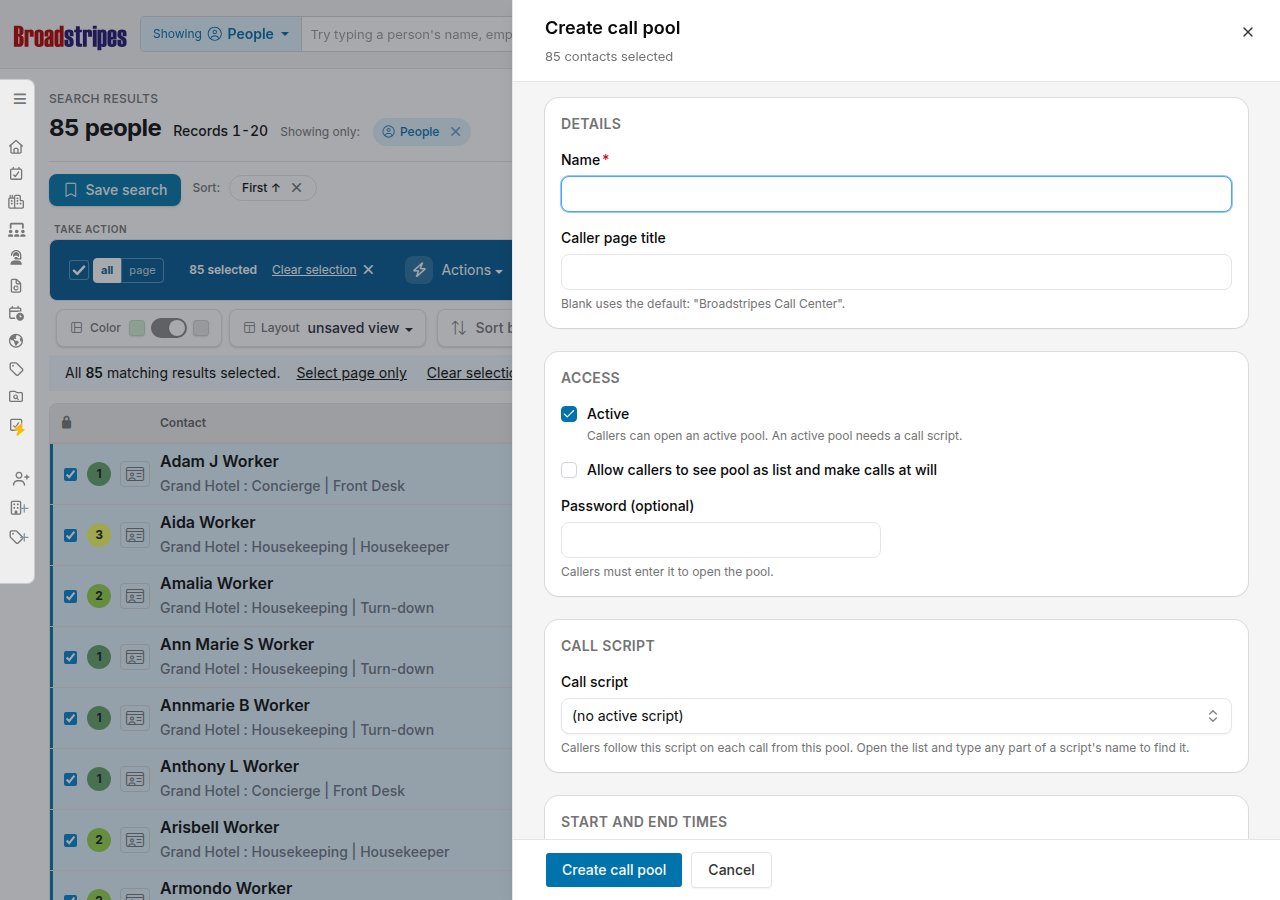
First search for the people you want to call, then select them. You can click Select All to select everyone in your search results, or check individual rows. Once you have contacts selected, go to Communications → Create call pool. If you click the menu item without selecting any contacts, a “Select contacts to continue” callout appears at the top of the page. Select contacts first, then try again. Clicking the menu item opens a panel on the right side of the page. The panel header shows how many contacts you selected. Fill in the form:- Details: Enter a Call pool name (required) and, optionally, a Caller page title that callers will see in their browser tab.
- Access: Check Allow callers to see pool as list and make calls at will to create a List call pool, or leave it unchecked for a Random call pool. Optionally enter a Password that callers must enter to start calling.
- Call script: Choose from your project’s active scripts.
- Schedule (optional): Set a start date and time, an end date and time, and the messages shown to callers before or after the pool is open.
Edit existing call pools
- Open the call pool list. Either click Call pools () in the left sidebar, or open the settings gear (Project settings) in the upper right and choose Call pools under Call Center. Both open the Call Center settings page with the Pools tab active.
- Find the pool you want to edit.
- Click the ••• menu next to the pool name. Choose Copy call pool link to grab the shareable URL, Edit to open the pool’s edit panel, or Delete to remove the pool.
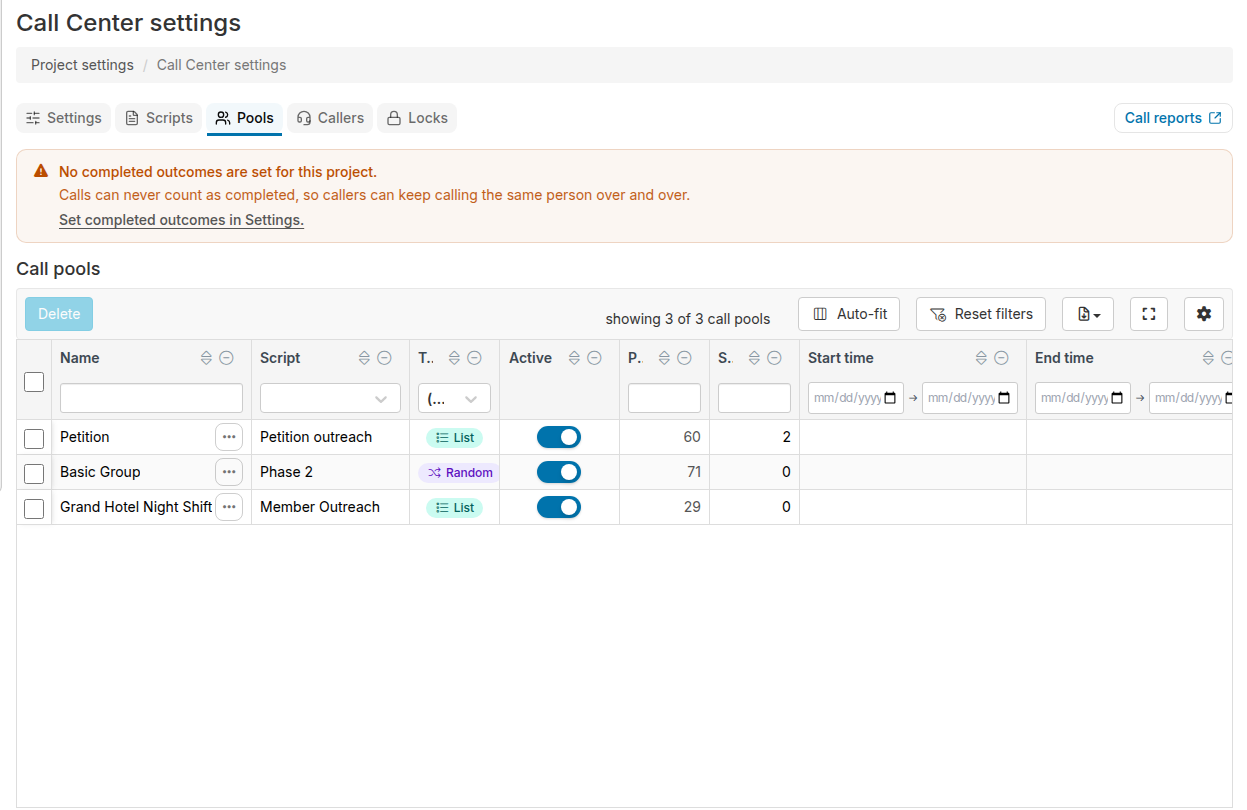
You can also delete a call pool by selecting the checkbox next to the pool and clicking the Delete button at the top of the page.
-
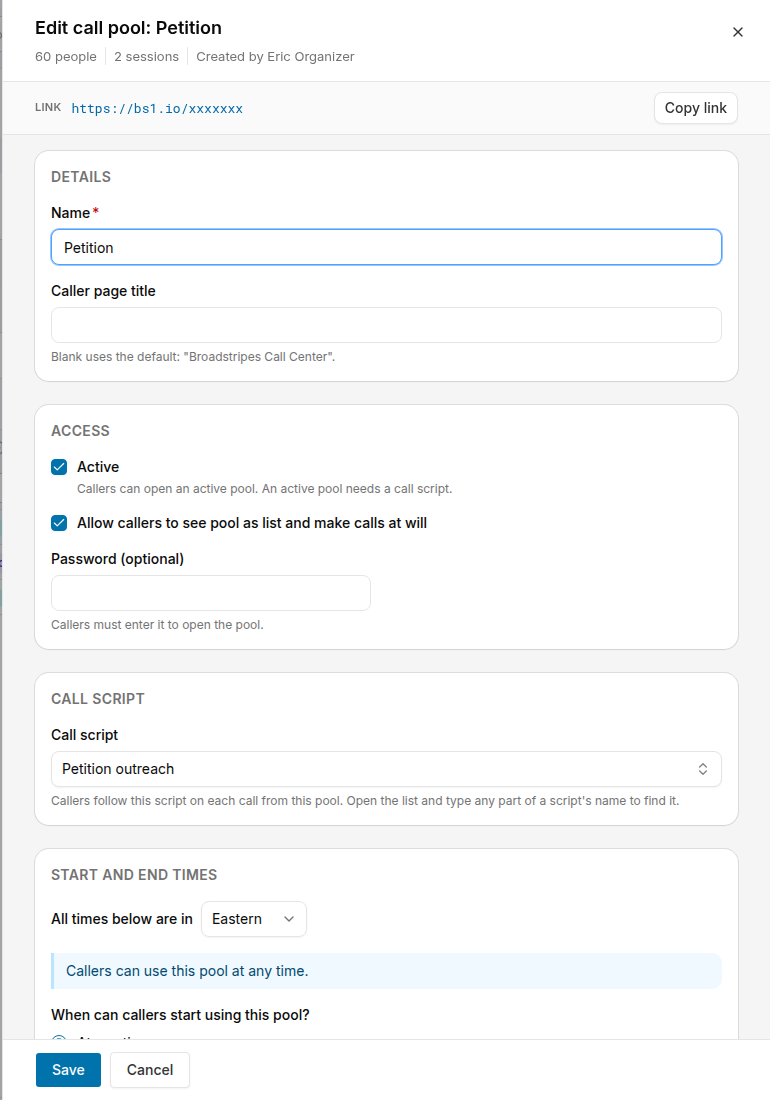
The Edit call pool panel opens on the right side of the screen. Its settings are organized into four sections.
- Details contains the pool name (required), the caller page title, and (for authenticated pools only) the caller greeting. The caller page title sets the browser tab title callers see when they open your call pool link; leave it blank to use the default. The caller greeting sets the introductory text shown on the sign-in page of an authenticated pool; leave it blank to use the default.
- Access contains the Active checkbox, the Allow callers to see pool as list and make calls at will checkbox (shown for non-authenticated pools only), and the optional Password field. A caller must enter the password to open a password-protected pool.
- Script lets you choose the call script for the pool from a searchable list.
- Schedule lets you set a time zone and optional start and end boundaries for when callers can use the pool. Choose “Only from a date and time I choose” to reveal date, time, and message fields for either the start or end boundary. The message you enter is shown to callers who try to open the pool before it starts or after it ends.
- Make your changes and click Save. An Unsaved changes label appears in the panel footer while you have edits that have not been saved. If you close the panel or navigate away before saving, a confirmation step asks whether you want to discard your changes.
If the script selected for a pool has no
OUTCOME steps, or none of its outcomes match the project’s Completed outcomes, a warning callout appears below the Script selector in the pool’s edit panel. Calls from this pool can never be marked completed until the script issue is resolved. The Pools tab also shows a warning banner above the table listing any active pools with this problem, and a warning icon () appears in the Script column for the affected pool rows.If the script assigned to an active pool has been deactivated, the same warning icon () appears in the Script column of that pool’s row. Click the icon for a description of the problem and the steps to fix it (reactivate the script, assign a different script, or deactivate the pool). A banner above the Pools table also lists all active pools in this state.Adding and removing people from pools
Adding people to an existing pool- Search and select the people you want to add
- Go to Communications → Add to call pool
- Choose the existing pool from the dropdown
- Click Add
- The people are immediately available for calling
- Search and select the people you want to remove
- Go to Communications → Remove from call pool
- Choose the pool
- Click Remove
- The people are immediately removed (even if currently being called)
Managing multiple call pools
You can run multiple pools simultaneously:- Different scripts: One pool for GOTV, another for member surveys
- Different target groups: One pool for members, another for non-members
- Different campaigns: One pool per worksite or department
- Sequential pools: Create new pools as campaigns progress
- “GOTV Week 1 - High Priority” (List call pool, 200 people)
- “GOTV Week 1 - General” (Random pool, 1,800 people)
- “Member Check-in - Warehouse” (Random pool, 500 people)
Call pool scheduling
Setting start times Why use it:- Coordinate phone banks across time zones
- Prevent callers from starting too early
- Align with campaign launch times
- Start date: November 1, 2024
- Start time: 5:00 PM
- Time zone: Eastern
- Start message: “Thank you for volunteering! This phone bank opens at 5pm Eastern time. Please return after 5pm to begin calling.”
- Respect calling hours (e.g., no calls after 9pm)
- Close pools when campaigns end
- Ensure accurate reporting periods
- End date: November 5, 2024
- End time: 9:00 PM
- Time zone: Eastern
- End message: “This phone bank has closed. Thank you for your hard work! Check back for future calling opportunities.”
Call pool strategy
1. Size your pools appropriately Small pools (< 100 people):- Use List call pools for more control
- Good for targeted follow-up
- Personal touch important
- Random pools work well
- Consider splitting by geography or demographic
- Monitor daily progress
- Random pools are essential
- Break into multiple pools by priority
- Assign dedicated project admins
- “High Priority” (List) - VIPs, leaders, known supporters
- “Medium Priority” (Random) - Members, past participants
- “Low Priority” (Random) - Cold contacts, wide outreach
- Remove people who’ve been called
- Add newly identified contacts
- Update as campaign progresses
- Don’t let pools grow stale
- “GOTV 2024 - Week 1 - High Priority”
- “Member Survey - Oct”
- “Pledge Cards - North Side - Evening”
- “Pool 1”
- “Test”
- “Calling list”
- Don’t start too early (before 9am)
- Don’t end too late (after 9pm)
- Consider time zones
- Respect calling hour norms