

Overview
The Leadership dialog is the main place to manage one person’s or organization’s place in your project’s leadership structure. From a single dialog you can assign or change the entity’s leader role, manage who leads them, add and remove followers, and review past leadership relationships.The Leadership dialog is available on projects that have the Labor Organizing feature enabled. You must have edit-level access to make changes; users with read-only access can open the dialog but cannot save anything.
Opening the Leadership dialog
You can open the dialog from several places in the app:- Leaders tab — Click any leader’s name on the Leaders tab of your homepage to open the dialog for that leader.
- Quick view — Open the quick view for any person or organization, then click the pencil icon () next to the Leadership section heading.
- Leader tree — Hover over any person card and click the Manage followers button in the card’s action row.
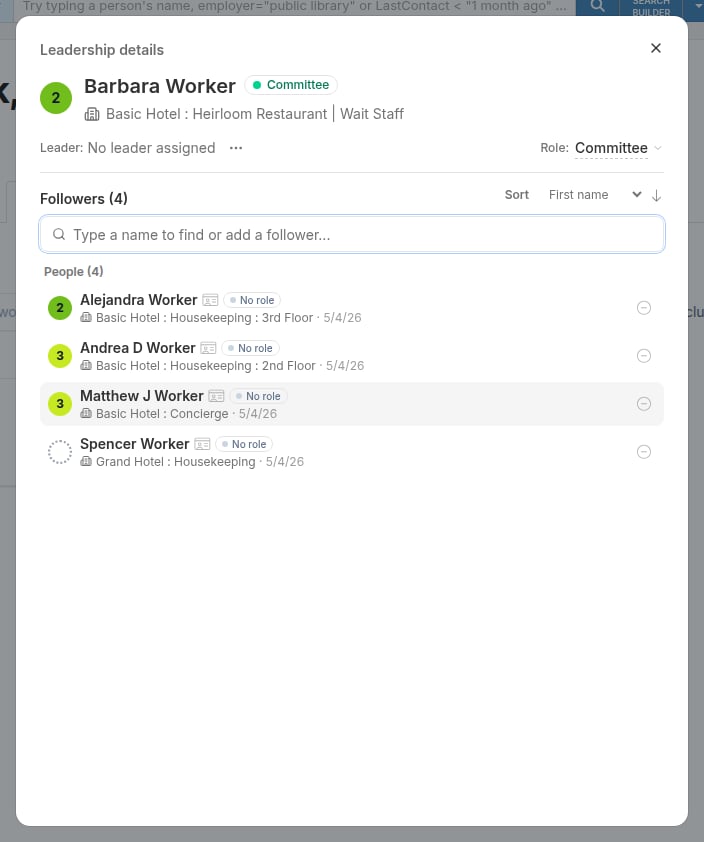
Dialog header
The header at the top of the dialog identifies who you are editing:- For a person: an assessment disc, the person’s name, a leader role badge (if they hold one), and their primary employer below the name.
- For an organization: a building icon or assessment disc, any parent organizations above the name, and the organization’s name.
Managing the leader
Below the header, a ruled row shows who leads this person or organization, labeled Leader. The row works the same way whether you opened the dialog for a person or an organization.Viewing the current leader
When a leader is assigned, their name appears on the row. A quick view button () next to the name lets you open the leader’s own record in a popover without closing the dialog. When no leader is assigned, the row reads “No leader assigned”.Actions menu
Click the button on the Leader row to open the actions menu. The menu offers:- Assign leader / Change leader — Opens a search field you can type in to find the new leader. Type at least two characters to see suggestions. Click a result to save immediately. While the save runs, the row shows a spinner. Press Escape with the search field empty to cancel without saving.
- Terminate leadership — Ends the current leadership relationship as of today and keeps it in the leadership history. Use this when the relationship ends on good terms and you want a record that it existed. A confirmation dialog appears before anything is saved.
- Delete leadership — Removes the leadership relationship entirely, including from the history. Use this only when the relationship was created in error. A confirmation dialog appears before anything is deleted, because this action cannot be undone.
- Leadership history — Opens a popover table showing all past leaders for this person, with the start and end dates of each relationship. From the table you can delete individual history entries by clicking the trash icon.
Assigning a leader role (people only)
On the right side of the Leader row, a Role label and the current role name appear. The role name is underlined with a dashed line indicating it is clickable. Click it to open a dropdown listing all of the project’s leader roles, each shown as a colored badge, plus a “None” option at the top. Select any item to save immediately. While the save runs, the dropdown is disabled and a spinner appears. A brief “Saved” or “Error” note confirms the outcome. The role dropdown appears only for people, and only when your project has at least one leader role configured.The Followers list (person dialogs)
When you open the Leadership dialog for a person, the lower portion of the dialog shows their Followers list. The count of all followers appears in the list heading.Filtering and sorting followers
A search field at the top of the list serves two purposes at once. As you type, it filters the existing followers by name (including any parent organization names for organization followers). At the same time, it searches the project for people and organizations you could add as new followers. To the right of the heading, a Sort control lets you change the order within the list:- First name — Alphabetical by first name (the default).
- Last name — Alphabetical by last name.
- Employer — Alphabetical by employer name for people, or by hierarchical name for organizations.
Adding a follower
Type in the search field until the dropdown shows the person or organization you want to add. Click their row in the dropdown to add them as a follower. If the person is already led by someone else, a confirmation dialog appears before the reassignment is saved. The list refreshes after a successful add.Removing a follower
Each row in the followers list shows a remove button on the right side. Click it to terminate the follower’s relationship with this leader. The row disappears immediately (optimistic update), and a notification at the top of the list shows “Removed” with an Undo link you can click within a short window to restore the relationship.List layout
The list groups followers into two sections, Organizations above People, each with a count. A sticky header for each section stays visible as you scroll. Each row shows the follower’s assessment disc, name, employer (or employee count for organizations), the date the leadership relationship started, and the remove button.The Leaders list (organization dialogs)
When you open the Leadership dialog for an organization, the lower portion shows a Leaders in this organization list. This list shows every person employed in this organization and every organization nested under it who holds a leader role or leads at least one follower, grouped under their employer.Sort control
A Sort (within orgs) control to the right of the heading lets you change the order of people within each employer group:- First name — Alphabetical by first name (the default).
- Last name — Alphabetical by last name.