

What the tour covers
The tour highlights the four main tools you will use on the search results page:Desktop: the guided rail
On a wide screen, a dimmed overlay highlights each tool with a spotlight and a description panel on the right side. The panel shows all four tools at once so you can read ahead before trying each one.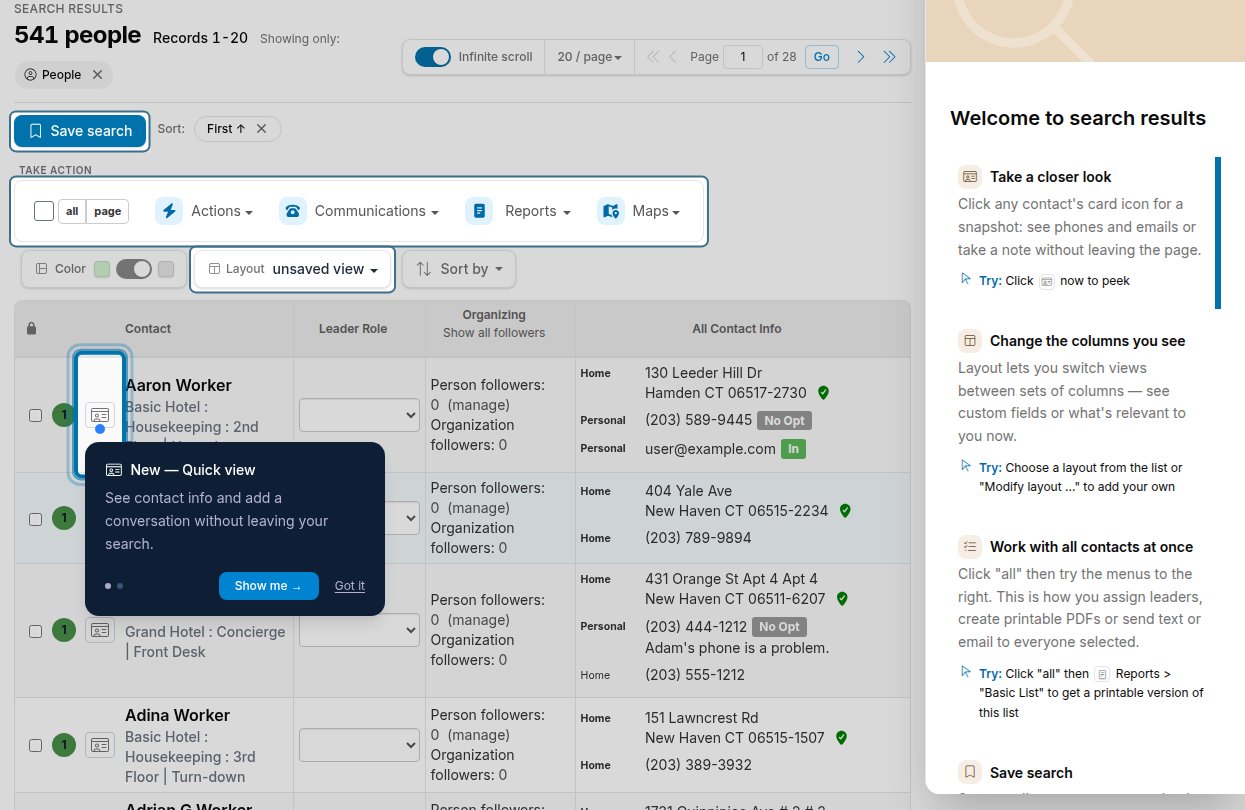
Mobile: the welcome dialog
In a narrow browser window, a welcome dialog appears with callouts for the three tools that are hardest to discover on a small screen. On a phone, Broadstripes normally opens the phone interface instead, so you see this dialog only if you open the full web site on your phone. The dialog shows these tools:- Quick View — tap the contact card icon on any row.
- Bulk Actions — tap the hamburger menu (), then tap ‘all’ and choose an action.
- Layouts — also inside the hamburger menu; switch views to see custom fields or other info.
Reopening the tour
After the tour closes, a Tour this page () link appears in the search results header. Click it any time results are showing to reopen the full tour. Reopening does not affect onboarding for other users and does not re-record the tour as seen.